KKONEKTIFYWIFI SYSTEM
KONEKTIFY STANDALONE GUIDE

Standalone guides, setup references and diagrams.

The current public documentation release is focused on KONEKTIFY Standalone. Standalone Pro and Controller guides will be added when those system levels are ready for public release.
CURRENT DOCUMENTATION · STANDALONE
GUIDE LIBRARY

Reference & support.

Diagrams, operating guidance and troubleshooting remain separate from the initial setup path.

DIAGRAMS

Wiring & Deployment Diagrams

Visual wiring and deployment diagrams for supported KONEKTIFY Standalone installations.

RECOVERY / RESET

Recovery / Factory Reset Pin

Learn what the dedicated Recovery / Factory Reset pin does, when to use it and the correct ESP8266 / ESP32 button wiring.

OPERATIONS

Standalone Operation & Features

Guidance for vending, vouchers, subscribers, collections, sessions, system tools and daily operation.

SUPPORT

Troubleshooting & Recovery

Practical checks and recovery guidance for common Standalone device, network, session and setup issues.

INSTALLATION & RECOVERY

Standalone setup sequence.

Follow these two stages in order. KONEKTIFY first verifies the device-to-MikroTik connection, then completes the required one-time MikroTik core preparation.

STAGE 01

Initial / Recovery Setup

Connect the Standalone device to its MikroTik environment and pass the strict RouterOS credential gate.

01
Power the deviceOn a new installation, or when Recovery Setup is active, KONEKTIFY exposes the setup access point.
02
Connect to setup Wi-FiJoin KONEKTIFY-SETUP-XXXXXX. The captive setup page should open automatically. If it does not, browse to 192.168.4.1.
03
Select the MikroTik networkUse the Wi-Fi scan to select the MikroTik / upstream SSID used by the Standalone deployment, then enter the required connection information.
04
Enter RouterOS credentialsProvide the MikroTik router IP, API port 8728, username and password.
05
Press CONNECTKONEKTIFY performs a strict RouterOS API login check before accepting the configuration. Invalid credentials are not saved and the device remains on the setup page.
06
Verified and savedAfter a valid login, KONEKTIFY reports MIKROTIK VERIFIED / CONNECTED AND SAVED, stores the accepted profile and reboots into the next setup stage.
Recovery behavior: use Recovery Setup when the saved connection needs to be repaired. Holding the Recovery / Factory Reset input for about 5 seconds enters Recovery mode; about 10 seconds performs a Factory Reset and returns the unit to a fresh installation state.
Login gate: if the MikroTik username or password is wrong, KONEKTIFY must not save the profile, advance the setup, or reboot. Correct the credentials and press CONNECT again.
STAGE 02

One-Time MikroTik Core Setup

Prepare and verify the MikroTik components KONEKTIFY requires before normal operation begins.

01
Open the one-time Core SetupAfter the Initial / Recovery connection is accepted and the device reboots, sign in to Admin and continue to ONE-TIME MIKROTIK CORE SETUP.
02
Synchronize the Vendo networkKONEKTIFY checks and prepares the required Vendo-side network/static-IP relationship used by the Standalone system.
03
Verify Walled GardenThe setup checks the required MikroTik Hotspot Walled Garden entries and installs the missing KONEKTIFY entries when needed.
04
Install / update the MikroTik coreKONEKTIFY verifies the RouterOS 6/7 core package/script and installs or updates the required KONEKTIFY MikroTik components.
05
Verify the completed coreThe setup verifies that the required MikroTik-side components are present and ready before allowing the one-time setup to finish.
06
Core Setup locksSuccessful completion reports ONE-TIME MIKROTIK CORE SETUP COMPLETE / LOCKED. Normal Admin operation then becomes the permanent operating path.
One-time gate: after the core setup completes successfully, it closes and normal Admin becomes the operating interface. A full Factory Reset is used when the entire one-time installation must be started again.
During Core Setup: keep the KONEKTIFY device and MikroTik router powered and connected until verification is complete.
RECOVERY / FACTORY RESET

Dedicated recovery/reset pin.

The dedicated pin gives the installer a physical recovery path when normal Admin or network access is unavailable. One button provides a non-destructive Recovery path and a longer Factory Reset action.

HOW TO USE

One button, two hold times.

Use the dedicated KONEKTIFY Recovery / Factory Reset input — not the development board's normal RESET / EN button.

01
Keep the device poweredUse the dedicated Recovery / Factory Reset button while KONEKTIFY is powered and running. Do not remove power while the hold action is being detected.
02
Press and hold the dedicated buttonThe same hardware input is used for both Recovery and Factory Reset. The action depends on how long the button is held.
03
Release at about 5 seconds for RecoveryRecovery reopens the KONEKTIFY Recovery Setup path so the saved MikroTik / network connection can be repaired without intentionally performing a full Factory Reset.
04
Continue to about 10 seconds for Factory ResetFactory Reset returns the KONEKTIFY device to a fresh installation/setup state. Use this only when the complete one-time installation must be started again.
05
Wait for the restartAfter the selected action completes, allow KONEKTIFY to restart. When setup mode is active, connect to KONEKTIFY-SETUP-XXXXXX and continue through the setup flow.
Recovery · ~5 seconds: use this when the MikroTik connection, Wi-Fi profile or setup access needs repair. It opens the Recovery Setup path instead of intentionally starting the full installation from zero.
Factory Reset · ~10 seconds: use this only when you deliberately want to return KONEKTIFY to a fresh installation/setup state. Continue holding past the Recovery point until the Factory Reset action is triggered.
HARDWARE INPUT

Use the pin for your ESP platform.

ESP8266 and ESP32 use different electrical button wiring even though the Recovery / Factory Reset behavior is the same.

8266
ESP8266 · D0 / GPIO16Dedicated Recovery / Factory Reset input. Wire the momentary button from D0 / GPIO16 to 3.3V. The input is active-HIGH using the ESP8266 GPIO16 pulldown behavior.
32
ESP32 · GPIO33Dedicated Recovery / Factory Reset input. Wire the momentary button from GPIO33 to GND. The input is active-LOW with the internal pull-up enabled.
Purpose: the dedicated pin remains available as a physical service path even when saved network settings prevent you from reaching KONEKTIFY through the normal web interface.
Do not confuse the buttons: the ESP board's built-in RESET / EN control only reboots the microcontroller. It is not the KONEKTIFY Recovery / Factory Reset input.
WIRING & DEPLOYMENT DIAGRAMS

Standalone wiring references.

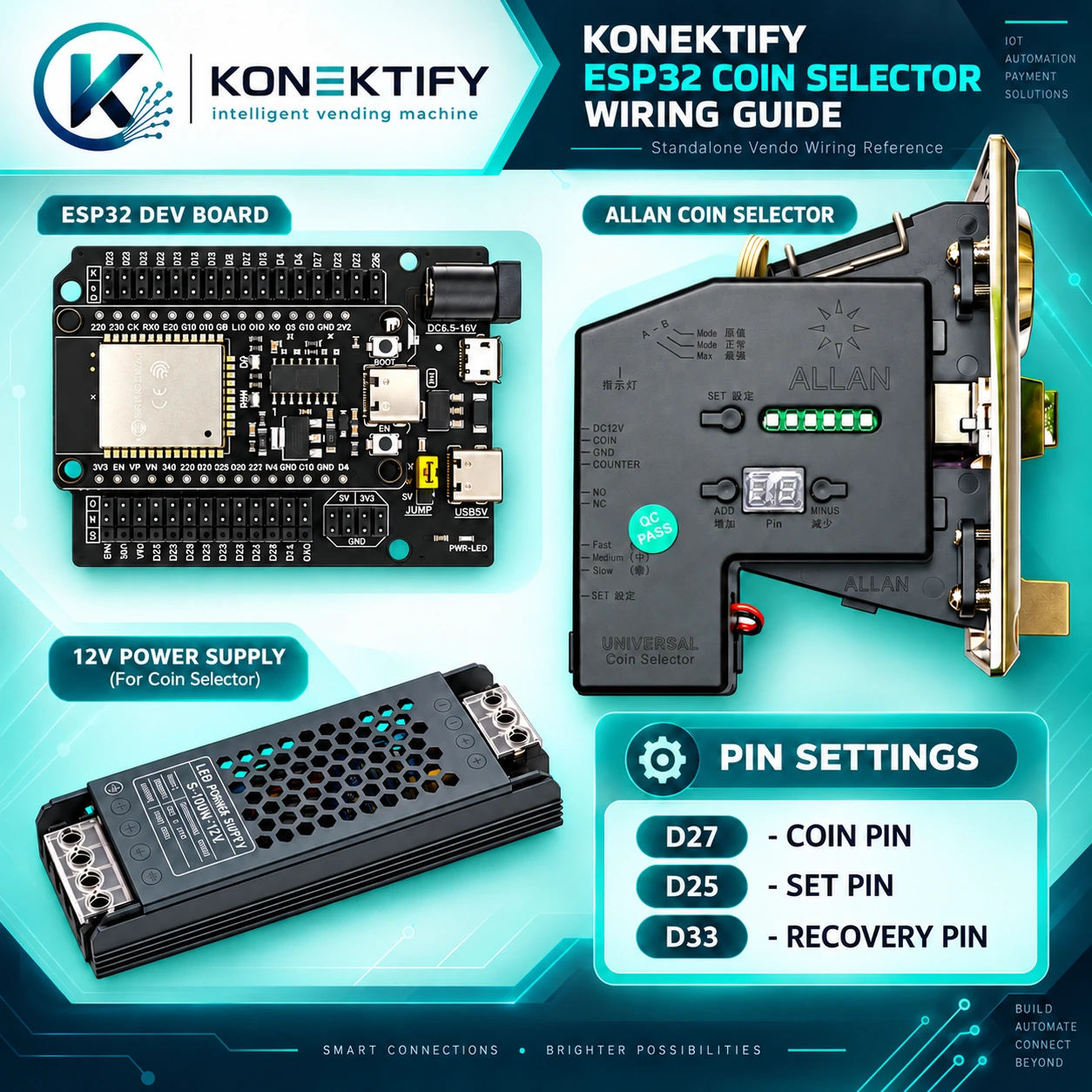
Use the diagram that matches your KONEKTIFY Standalone platform. The original R2 image is preserved and can be opened in a larger preview for pin-level inspection.
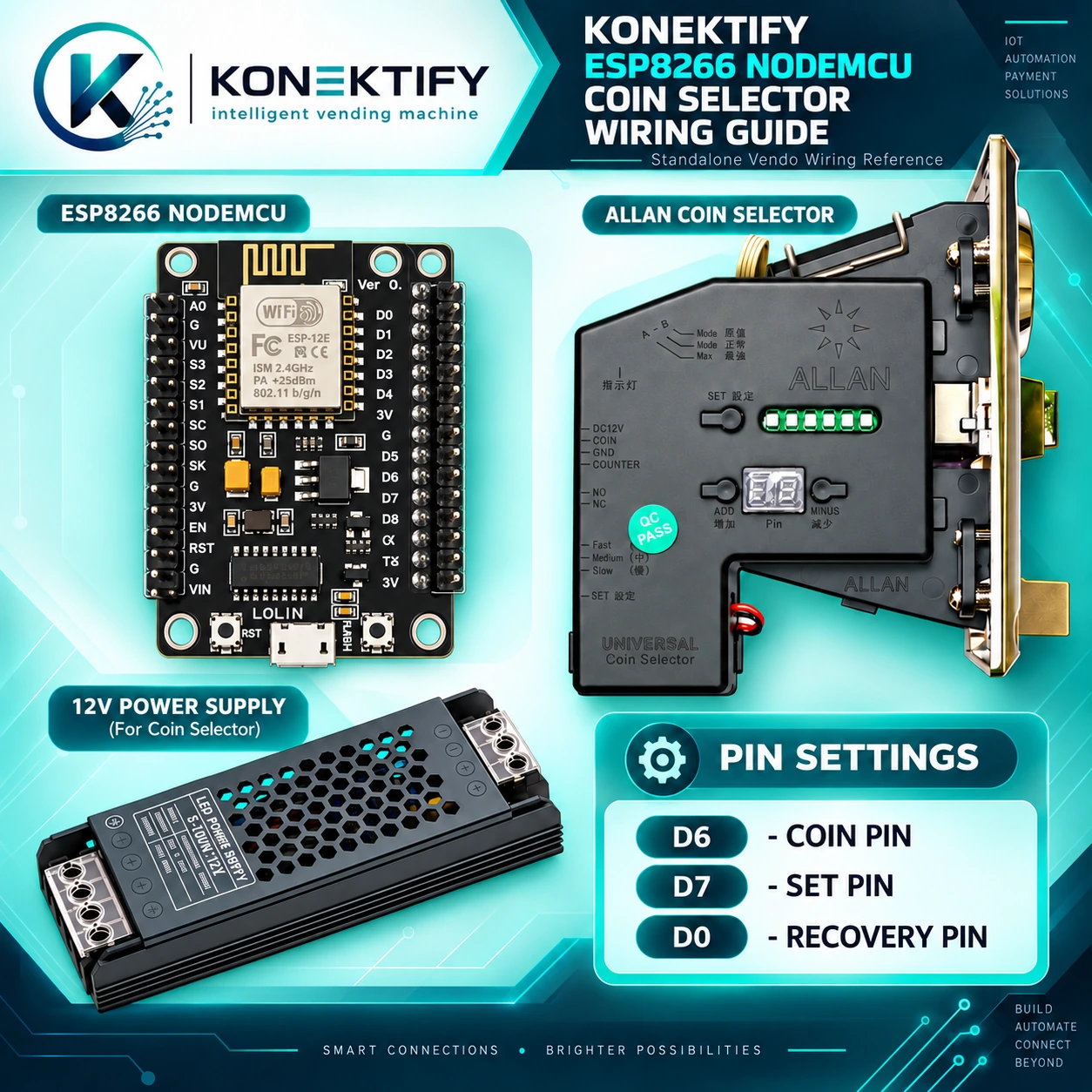
KONEKTIFY ESP8266 Standalone coin selector wiring guide

ESP8266 Standalone Wiring

Standalone wiring reference for the ESP8266 NodeMCU/baseboard, Allan coin selector and 12V power supply. Click or tap the diagram to enlarge it.
D6 COIND7 SETD0 RECOVERY
KONEKTIFY ESP32 Standalone coin selector wiring guide

ESP32 Standalone Wiring

Standalone wiring reference for the ESP32 development board/baseboard, Allan coin selector and 12V power supply. Click or tap the diagram to enlarge it.

D27 COIND25 SETD33 RECOVERY